Groups and Teams
A team is a named list of people in your Workspace. A group is a team plus a place of its own: a page in the sidebar that holds AI Employees, knowledge bases, integrations, and a ticket queue, all reachable by everyone in the team.
Ask Autopilot instead. Everything on this page can be done by asking Autopilot in plain language. It creates teams and groups, adds and removes people, changes roles, nests teams, and archives and restores, all without opening a form. See Doing All of This with Autopilot.
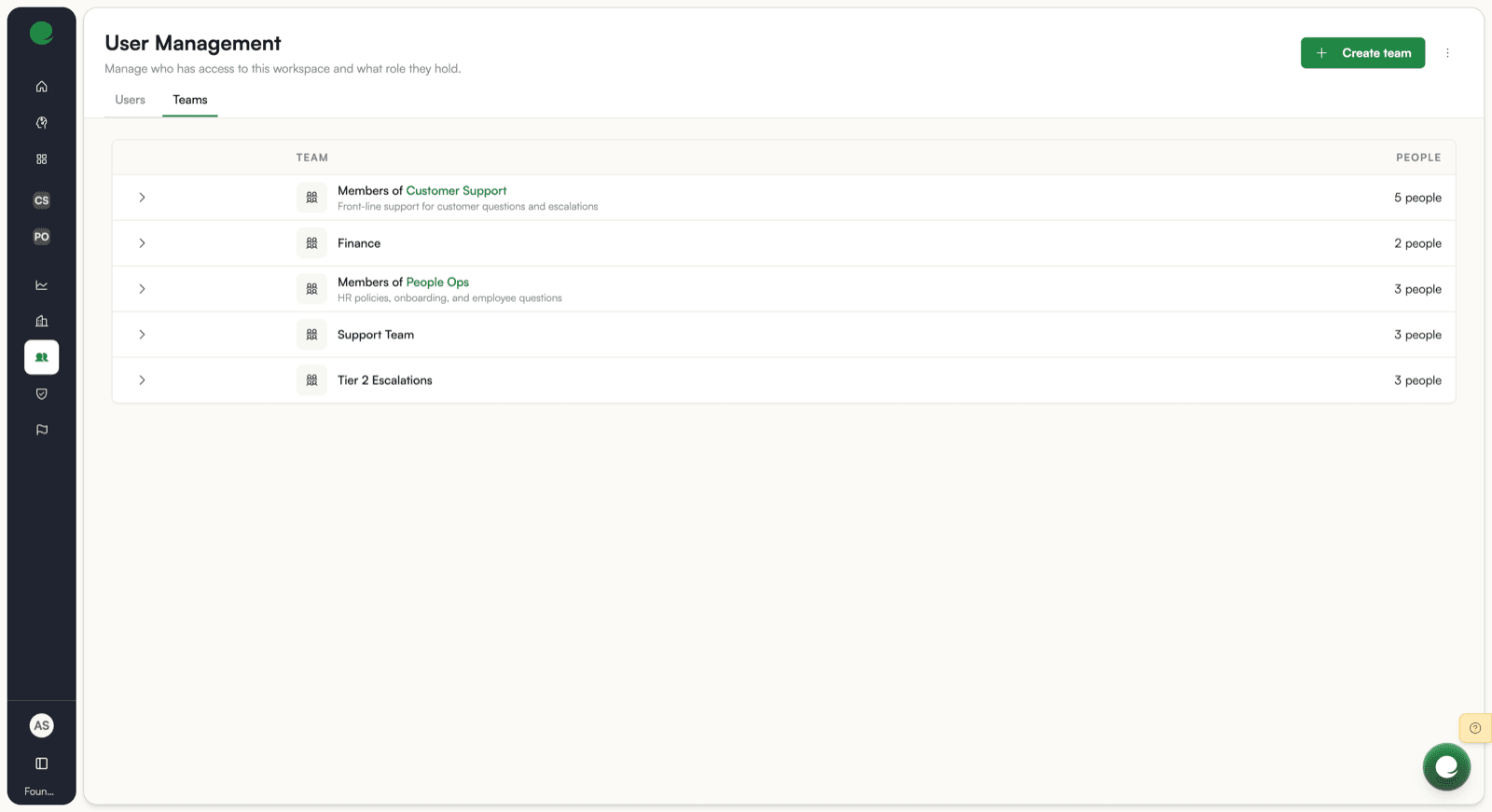
Both are the same object underneath. The difference is what the object carries. A team answers "who are these people?" A group answers "who are these people, and what do they work with?"
Which one you are looking at
| Team | Group | |
|---|---|---|
| Where you manage it | The Teams tab of User Management, at /admin/user-management/groups | The GROUPS section of the sidebar, and the group's own page at /groups/{id} |
| Who sees it | Workspace admins | Every person with access to that group |
| What it holds | People, and other teams nested inside it | People, plus AI Employees, knowledge bases, integrations, and one ticket queue |
| Created by | Create team on the Teams tab | The + in the sidebar GROUPS header |
A group's type is fixed when you create it. There is no way to promote a team into a group later, so create a group when you want a shared workspace and a team when you only need a list of people.
"Group" also means something else on the AI Employees page. The sections that sort AI Employee cards on /ai-employees are categories, not groups. A category is a label on a card. A group described here owns the AI Employee outright. See AI Employees.
What a group gives you
- One roster, many resources. Add somebody to the group once and they reach every AI Employee, knowledge base, integration, and ticket in it.
- Resources that belong somewhere. An AI Employee or knowledge base created inside a group is owned by that group permanently, and everyone in the group can use it without a separate share.
- Delegated administration. A group admin manages their own group's people and resources. They do not need Workspace-wide admin rights.
- Nesting. Invite a team into a group and every person in that team, including people nested further down, gets access. Access is recalculated as those teams change.
Who can do what
Two independent things decide what you can do: your Workspace role and your role inside the group.
| Action | Member | Builder | Group admin | Workspace admin |
|---|---|---|---|---|
| Open the group and use its resources | Yes | Yes | Yes | Yes |
| Create an AI Employee or knowledge base in the group | No | Yes | Yes | Yes |
| Add or remove people, change their roles | No | No | Yes | Yes |
| Rename, archive, or restore the group | No | No | Yes | Yes |
| Create a team or a group | No | No | No | Yes |
"Workspace admin" here means a role holding the group.manage capability: user_admin, builder_admin, or system_admin. A Workspace admin manages every team and group without being a member of any of them. See Governance and permissions.
What's next
- Groups for creating a group and what each of its tabs does.
- Teams for creating teams, managing people, nesting, and archiving.
- Group-Owned AI Employees and Knowledge Bases for what ownership by a group means.
- Sharing and Access for inviting people and teams, and how access is calculated.
- Integrations in a Group for shared connections and data sources.
- Doing All of This with Autopilot for the same operations from chat.