Teams
A team is a named list of people in your Workspace. Teams live on the Teams tab of User Management, at /admin/user-management/groups, beside the Users tab. Everything you can grant to a person, you can grant to a team instead, so a team is the unit you reuse when the same set of people needs access to several things.
Ask Autopilot instead. Everything on this page can be done by asking Autopilot in plain language. It creates teams and groups, adds and removes people, changes roles, nests teams, and archives and restores, all without opening a form. See Doing All of This with Autopilot.
Who can manage teams. Creating, renaming, archiving, and restoring a team requires the group.manage capability, held by the user_admin, builder_admin, and system_admin roles. A team's own admins manage that team's people without holding the capability.
The Teams tab
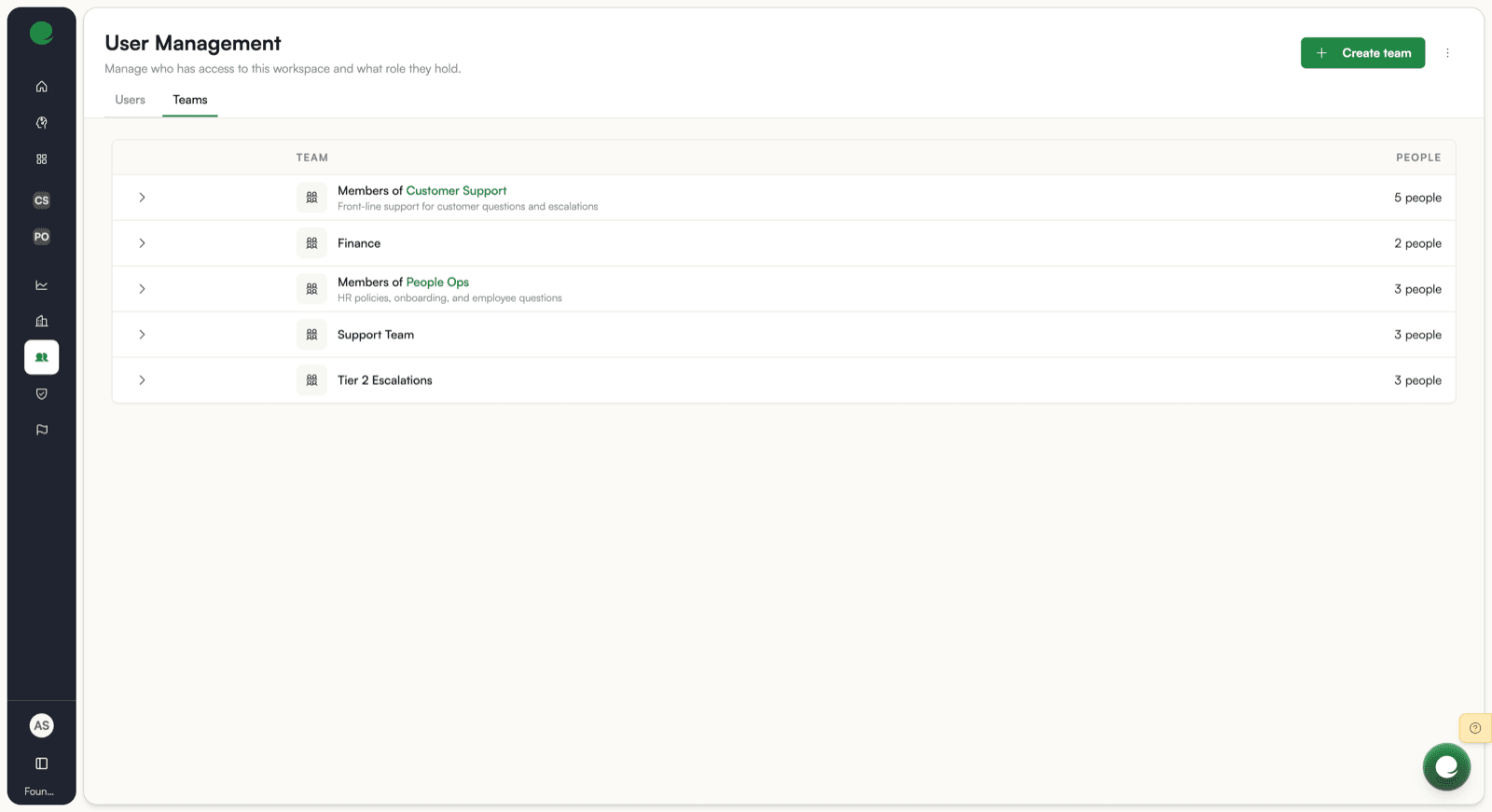
The tab lists every team and group in the Workspace as full-width cards. Each card shows the team name, an optional description, and the people count. The people count is unique people including everyone in nested teams, so a person in two nested teams is counted once.
Archived teams appear in the same list, grayed out, with the archive date and archiver shown in place of the description, and a Restore button in place of the people count. See Archiving and restoring.
Use the Search field at the top right to filter teams by name.
Click any live team card to open a members drawer showing that team's people without leaving the list.
Creating a team
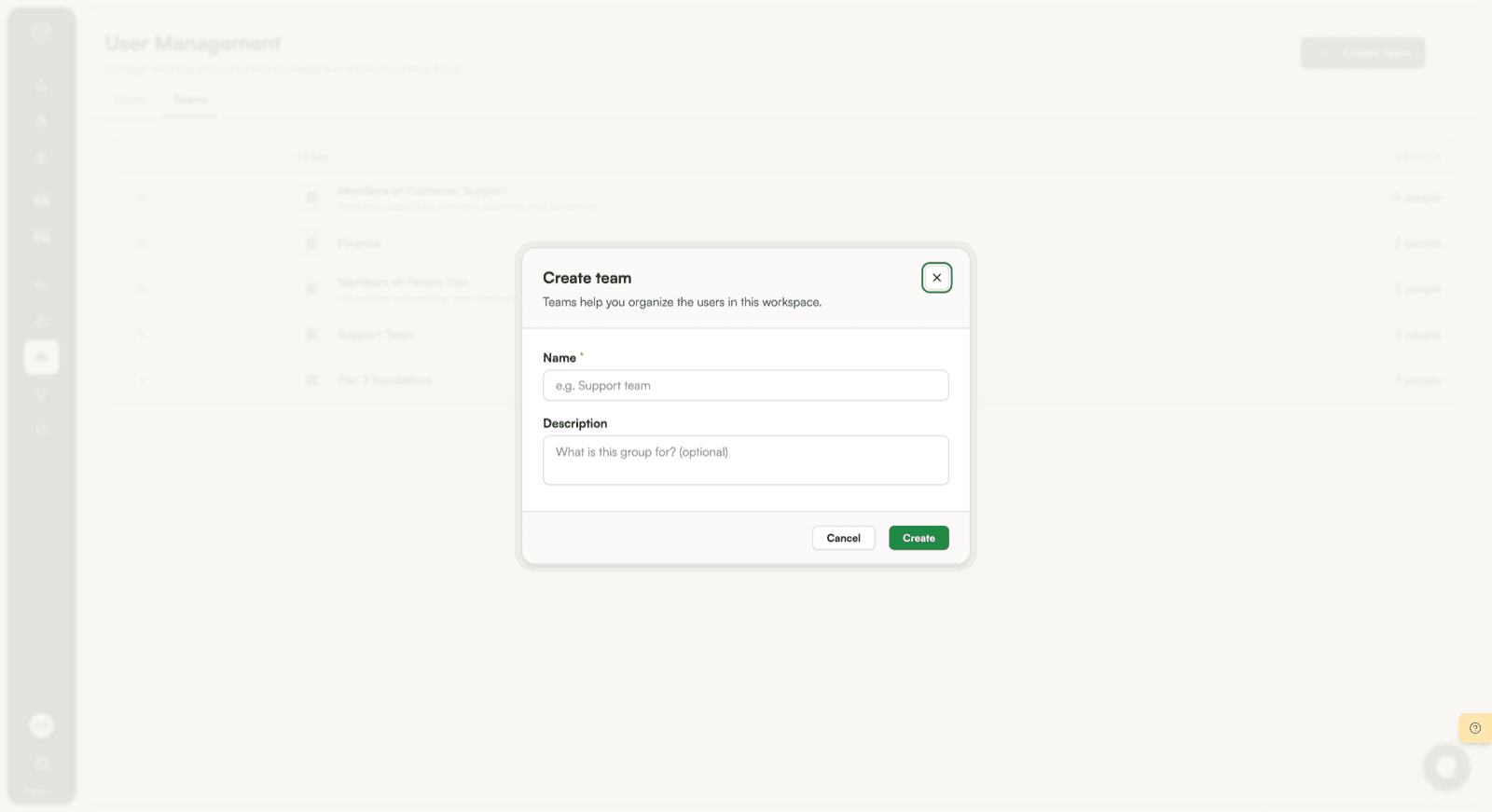
Select Create team. The form has two steps:
Step 1: Details. The form asks for:
- Team name, required, unique within the Workspace, and compared without regard to case. A second team called "support team" is rejected as a conflict.
- Description, optional. Use it to say what the team is for, since the name alone rarely survives a year.
Select Continue to move to step 2.
Step 2: Add members (optional). Enter email addresses and choose a role to apply to all of them. Type an address and press Enter or comma to add it as a chip; paste a comma-separated list to add several at once. The selected role applies to every address in the batch. Select Create to finish.
The person who creates the team becomes its first admin automatically. The new team appears in the list immediately after creation.
All Employees
Every Workspace has one built-in team called All Employees. It means everyone in the Workspace, and its membership is never stored as a list: it resolves to every active member of the Workspace at the moment it is read. Somebody added to the Workspace today is in All Employees today, with nothing to update.
You cannot add or remove people from All Employees directly. Change who is in the Workspace instead. See User management.
Grant something to All Employees when you want it available Workspace-wide but still want it to travel through the group mechanics rather than being made public.
Managing people
Click a team card to open the members drawer. The drawer shows each person's name, email, and role, and a row menu for admins.
Roles inside a team
| Role | What it allows |
|---|---|
member | Reach whatever the team has access to. No management rights. |
builder | Everything a member can do, plus create AI Employees and knowledge bases in a group. No management rights. |
admin | Everything a builder can do, plus add and remove people, change roles, nest teams, and rename or archive the team. |
When somebody reaches a team by more than one path, the strongest role wins. The order is admin, then builder, then member.
A team always keeps one admin. Removing the last admin, or demoting them, is rejected with "A team needs at least one admin." Promote a replacement first. Workspace admins are not counted here, because they manage every team already and would otherwise let a team drift into having nobody responsible for it.
Adding people
Select Invite in the drawer, then Invite users. Search by name or email, pick everybody you want, then choose the role to give the whole batch and confirm. Every person picked in one invite receives the same role. The list only offers people who are already in the Workspace: a team gathers existing people rather than creating accounts. To bring somebody new into the Workspace first, see User management.
Changing a role
Select the row menu for a person and choose Edit role. A modal opens showing the person's name and a role selector. Change the role and select Save.
Removing somebody
Use Remove from team on the row menu. The person keeps their Workspace account and every other team. They lose only what they reached through this team.
Workspace admins are not listed. The members table shows only people granted access directly. A Workspace admin manages the team without appearing in it, so a table with one row does not mean one person can administer the team.
Nesting teams
A team can contain other teams. In the members drawer, select Invite, then Invite teams. A search box lets you find and pick one or more teams; a Role selector below it sets the role given to every team in the batch. Select Invite to confirm.
A nesting link carries a role of its own, shown in the Role column. Inviting a team with role builder gives every person in it builder rights here, whatever their role is in their own team.
To change a nesting link's role, use the row menu on the nested-team row and select Edit access. A modal opens with a role selector; select Save to apply.
Removing a nesting link takes away only the inherited access. The child team, its people, and its own resources are untouched.
Where a team is nested inside others, its page shows a Nested in line naming them, so you can see where its people are getting access from.
No effective admins. A team can end up with nobody inheriting admin access, usually after a restructure. Its page then says so plainly. Workspace admins can still manage it, but nobody inside it can, so add an admin.
Resource types
Teams only show resource types they are permitted to own. The options available when assigning resources to a team reflect what that team can actually hold, so resource types that teams cannot own do not appear in the picker.
Archiving and restoring
Delete on a team archives it. Archiving is reversible, and restoring brings the team back with its people and its nesting intact.
Archiving a group takes its resources with it. For a group, the confirmation reads: deleting it also deletes the AI Employees and knowledge bases that belong to it. Those become unusable for everyone, including people who were invited individually. Move anything worth keeping to another owner first. See Group-Owned AI Employees and Knowledge Bases.
Archived teams appear in the same Teams list, grayed out, with the archive date and archiver shown below the name. Select Restore on an archived card to bring it back.
A name is only reserved by a live team, so somebody can create a new team using an archived team's name. Restoring then fails with a name conflict. Rename the team that took the name, then restore.
Reference: endpoints
Teams and groups are backed by the auth service. Every route returns 404 for a Workspace that does not have them enabled.
| Action | Endpoint | Who |
|---|---|---|
| List teams and groups | GET /groups | Workspace admin. ?kind=team or ?kind=group narrows it; ?archived=true lists archived ones. |
| Create | POST /groups | Workspace admin. Creator becomes the first admin. |
| Read one, with members, children, and parents | GET /groups/{id} | Any effective member |
| Rename or change the description | PATCH /groups/{id} | Group admin or Workspace admin |
| Archive | DELETE /groups/{id} | Group admin or Workspace admin |
| Restore | POST /groups/{id}/restore | Workspace admin |
| Add a person | POST /groups/{id}/members | Group admin or Workspace admin |
| Change a person's role | PATCH /groups/{id}/members/{userID} | Group admin or Workspace admin |
| Remove a person | DELETE /groups/{id}/members/{userID} | Group admin or Workspace admin |
| Nest a team | POST /groups/{id}/children | Group admin or Workspace admin |
| Change a nesting link's role | PATCH /groups/{id}/children/{childID} | Group admin or Workspace admin |
| Un-nest a team | DELETE /groups/{id}/children/{childID} | Group admin or Workspace admin |
| List everybody with access, deduped | GET /groups/{id}/effective-members | Any effective member |
A team returned by these endpoints looks like this:
{
  "id": "6f21...",
  "name": "Support team",
  "description": "Tier 1 and tier 2 support",
  "kind": "team",
  "membership_mode": "explicit",
  "member_count": 12,
  "my_role": "admin",
  "created_by": "3c92...",
  "created_at": "2026-07-06T09:14:00Z",
  "updated_at": "2026-08-11T17:02:41Z"
}
What's next
- Groups for what a group adds on top of a team.
- Sharing and Access for how inherited access is calculated.
- Set Up a Ticket Queue for giving a group a ticket queue.